User guide
Using One Roll
From your first roll to sharing a challenge. One Roll gives you a reason to look; this page shows where everything is. It covers the iPhone app.
The idea
One Roll is for the moments when you have a camera in your hand and nothing seems worth shooting. It gives you a prompt, from a single phrase to a handful of words, and usually a little time. What you point the camera at, and how you frame it, is entirely up to you. A little time is the push to notice things.
A roll is one prompt, saved with its settings. There are two kinds:
Assignment
A phrase to carry with you, at your own pace. Give it a time limit and it ends when the time is up, or choose No limit and take it for a walk.
Challenge
Words and a clock. A challenge is always timed and ends when the clock runs out. It is the kind to make and send to someone else.
A roll also has a number of frames, the photos you mean to make (1 to 36). One Roll doesn’t take the pictures. You use your camera as you always do and count each photo in the app.
First launch. A short introduction explains the idea and asks which camera settings you want on each roll (Aperture, ISO and Shutter Speed are preselected). You can change that any time in Settings, and you can skip the introduction.
Make your first roll
Tap the red + on the Assignments screen (or New Assignment or New Challenge if the list is empty) to open New Roll.
- Pick a kind. The switch at the top chooses Assignment or Challenge. It remembers your last choice.
- Read the prompt. The card shows a title and a short description of what to look for. Tap Regenerate for another.
- Set the frames and the time. Roll Count and Time Limit each have a Select menu. Time limits start at 15 minutes, 30 minutes, 45 minutes and 1 hour. An assignment can also be No limit; a challenge can’t.
- Keep or drop camera settings. Each row (such as Aperture or Shutter Speed) is something to shoot with. Use the lock to keep one, or swipe left to remove it from this roll. Add a Setting brings a removed one back.
- Tap Save Roll. It goes to your Assignments list, ready to start.
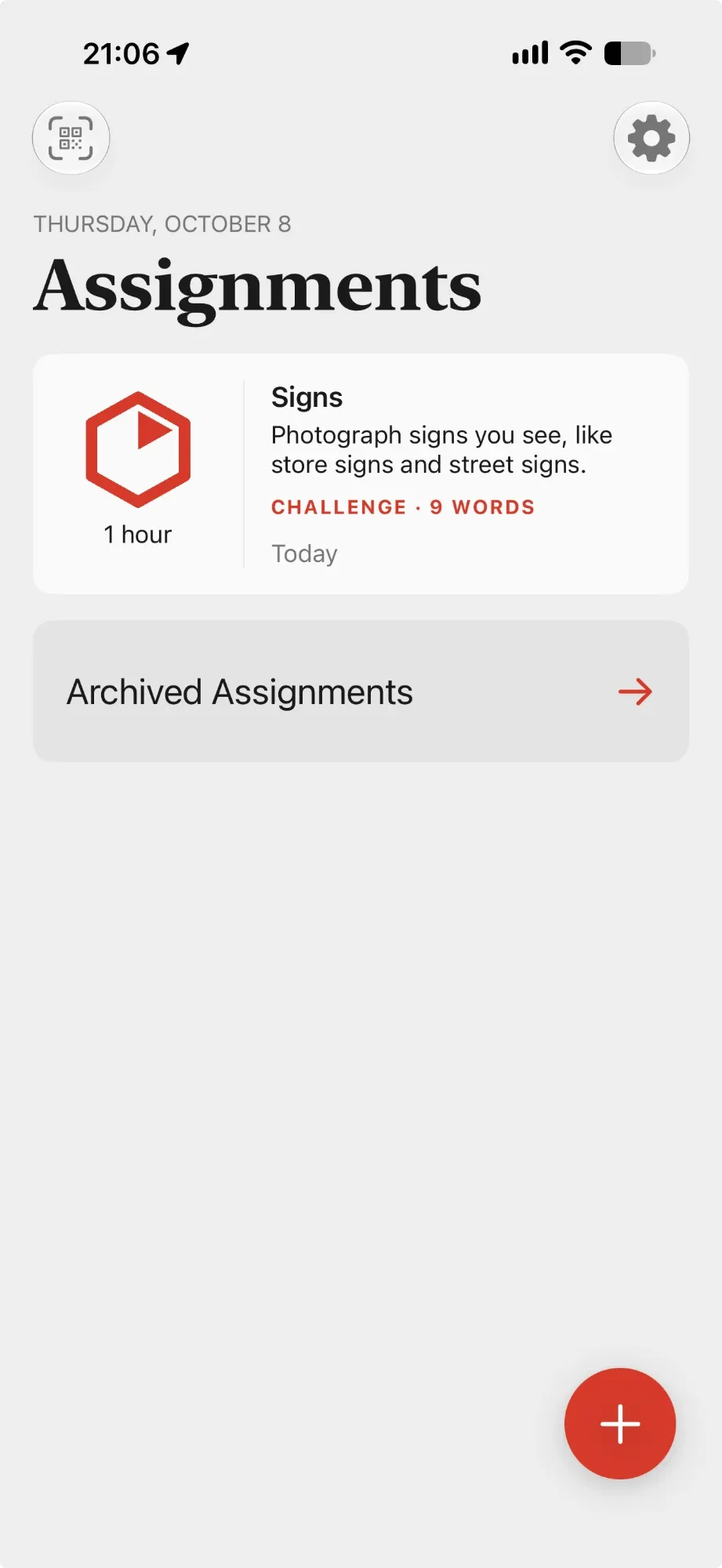
Locks, Regenerate and re-rolling one thing
Regenerate rolls everything again, except what you have locked. The padlock beside the title and description keeps the writing; the padlock on a setting keeps that setting; the padlock on the words keeps them. If you lock the description and not the words, Regenerate keeps the description and writes new words to suit it, and the other way round.
- Double-tap a setting, Roll Count or Time Limit to re-roll just that one.
- Double-tap the title and description to write a new one on its own.
- Long-press a setting to set it to your default for that setting, if you have one.
Write it yourself
The pencil beside the padlock lets you retype the title (one line, up to 80 characters) and the description (up to 500). It is free. An edited prompt is marked Edited, and the app asks before anything would replace it: Replace My Edits or Keep My Text.
Start from a word, or from a photo Pro
Type a keyword (a word or a short phrase, such as “red”, “winter is coming” or “wheels in motion”) and tap the arrow to write a roll about it. Or tap the camera to Take Photo or Choose Photo of where you are: One Roll reads the scene on your phone and offers a phrase and a few words. Tap the chips under the field to keep the phrase, pick a few words or mix them. The photo never leaves your phone.
Without Pro, prompts come from One Roll’s built-in library of everyday ideas: things you can do near home in about an hour, with no gear. With Pro, your phone’s own writing model writes them, when your phone supports it.
Prompt words and the star word Pro
A roll can carry words: a pool of things to shoot from, written for the assignment on screen. They are optional. On New Roll, the Prompt words row opens a page for them.
- Switch on Prompt words. One Roll writes 16 words to suit the assignment. The best 8 start chosen and the rest wait as suggestions.
- Tap a chosen word to take it out. Tap a suggestion to add it.
- More ideas brings 12 more that repeat nothing already there.
- Add your own word with the field below. One or two plain words each; commas let you add several.
- Lock the words and Regenerate won’t touch them.
Words are a pool, not one per frame. A roll can have more words than frames, or fewer, and you can shoot the same word more than once. A roll holds up to 36 words.
The star word ★. One word is marked with a star. It is the one to be sure to shoot, and for a shared roll, the photo people look at most. It can’t be taken out, and there is no score or extra credit.
Hints. A separate switch gives each word a short tip, written on your phone. Hints are on for assignments by default and off for challenges, so a challenge stays even for everyone. Hints are never sent with a shared roll; each phone writes its own.
Free users can still run the words in a roll someone sends them. Words and hints are the Pro part of making a roll.
Shoot a roll
Open a saved roll from the list and tap Start Roll. Only one roll can run at a time. The first time, One Roll explains what its notifications are for and asks permission (never at launch). Then take your camera out.
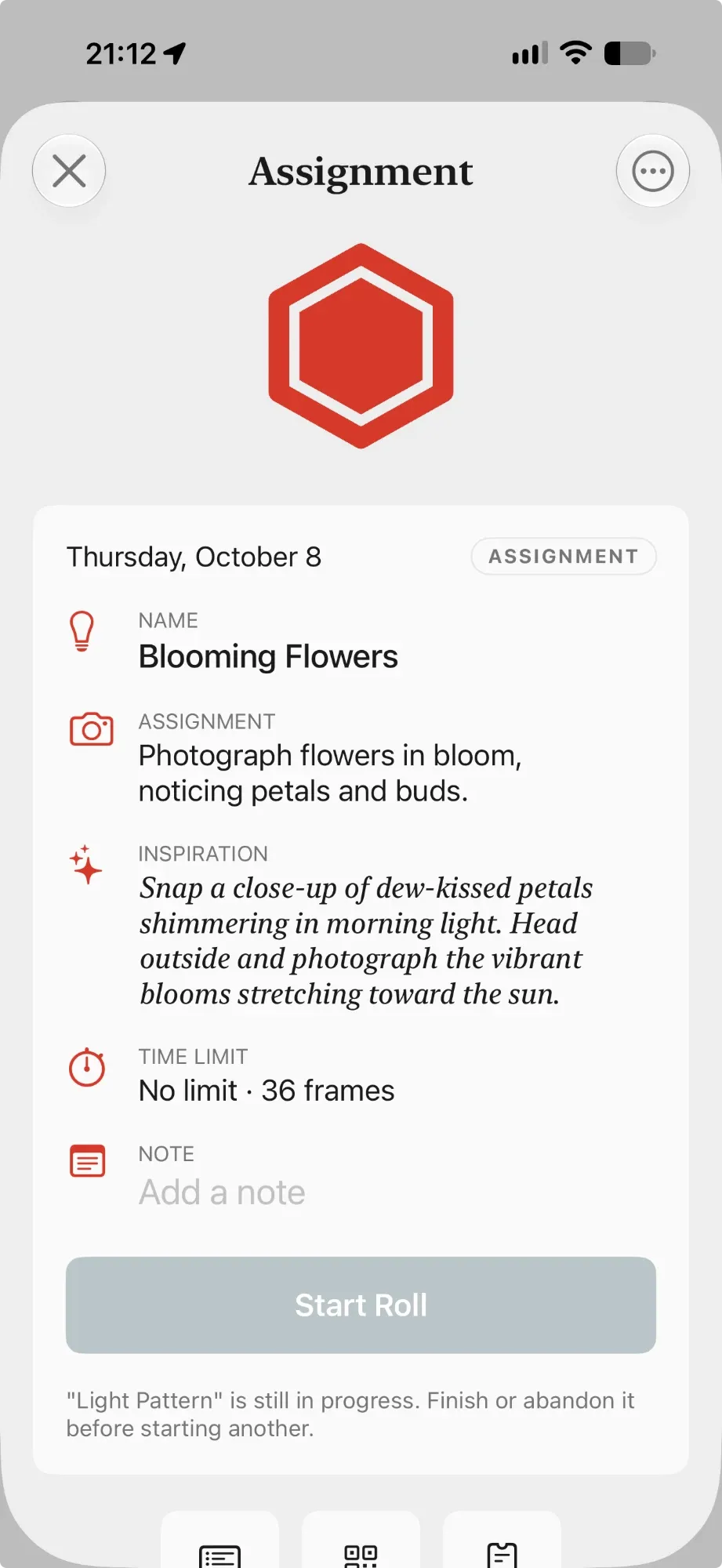
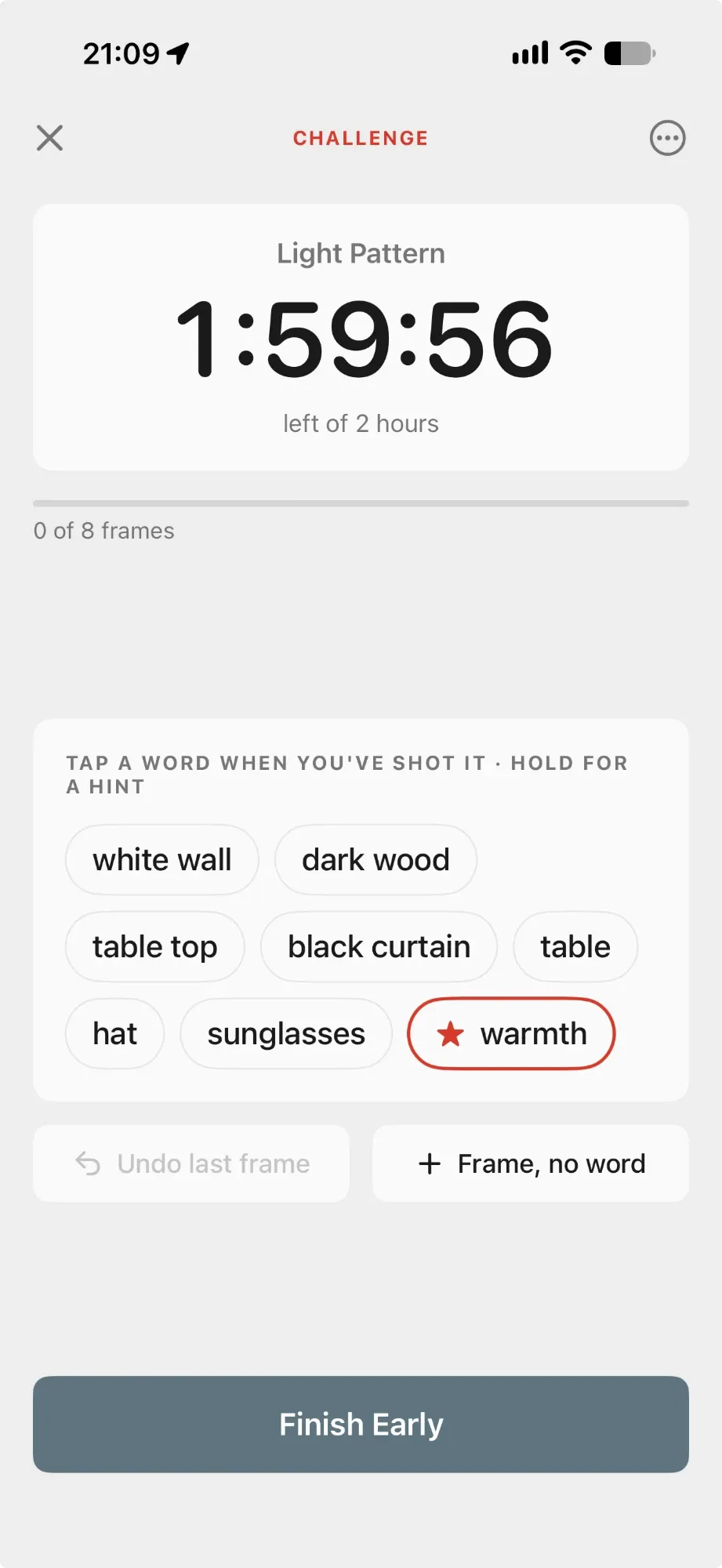
The roll screen
- The clock shows the time left of your limit. With no limit it shows the time elapsed. It is worked out from when you started, so it stays right if you leave the app.
- Progress reads “n of N frames”.
- With words, you see the pool. Tap a word each time you make a photo of it. A number appears on the word when you have shot it more than once. Undo last frame takes the last one back, and Frame, no word counts a photo that fits none of them. Press and hold a word for its hint, if hints are on.
- Without words, a big FRAMES counter has − and + buttons.
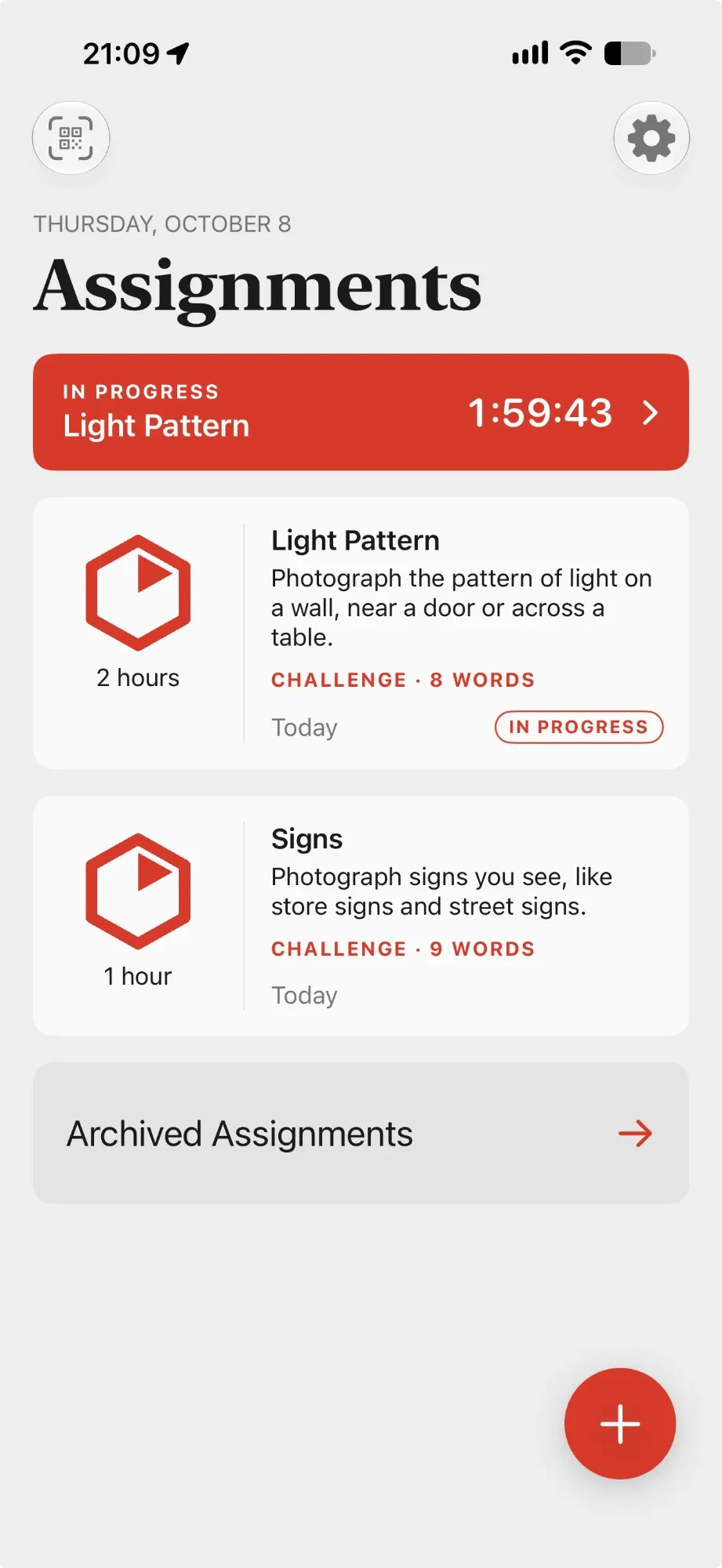
- The ✕ at the top left closes the screen and the roll keeps running. A banner marked IN PROGRESS on the list takes you back.
- The ⋯ menu has Finish Roll and Abandon Roll.
Rolls made before words became a pool play their words one at a time, with Done and Skip, and keep doing so.
Alerts
A timed roll gives you a one-minute warning (if it is at least two minutes long) and a note when time is up. An assignment with no limit sends a gentle reminder every few hours, at most three, never overnight. A notification never covers the roll screen it is about. Change all of this under Settings → Reminders.
When it ends
A roll with a time limit ends itself when the time is up. You can also end any roll early with Finish Early (the button says Finish Roll once you have made every frame, or when there is no clock). If the star word is still unshot, you are told before you finish; it won’t stop you.
The summary shows:
- Your time against the limit, and frames made.
- A short closing note about the numbers, never about your photographs, in the voice you chose in Settings.
- The words you shot and, for the star word, a line such as “Star word: patience, shot twice.”
- Share Result, and Save End Card Pro to your photo library.
Abandon Roll marks a roll as abandoned if you stop. Neither end is a failure; you can Run Again from the roll’s page.
Your rolls
The Assignments list
Every roll you have made or imported is a card here. Tap one to open it. Long-press a card to Archive it. With 4 or more rolls the list gets a search field. It looks at titles, descriptions, notes, inspiration and words, matching every word you type in any order and parts of words, and nothing you type is stored. The scan icon at the top left imports a roll; the gear at the top right opens Settings.
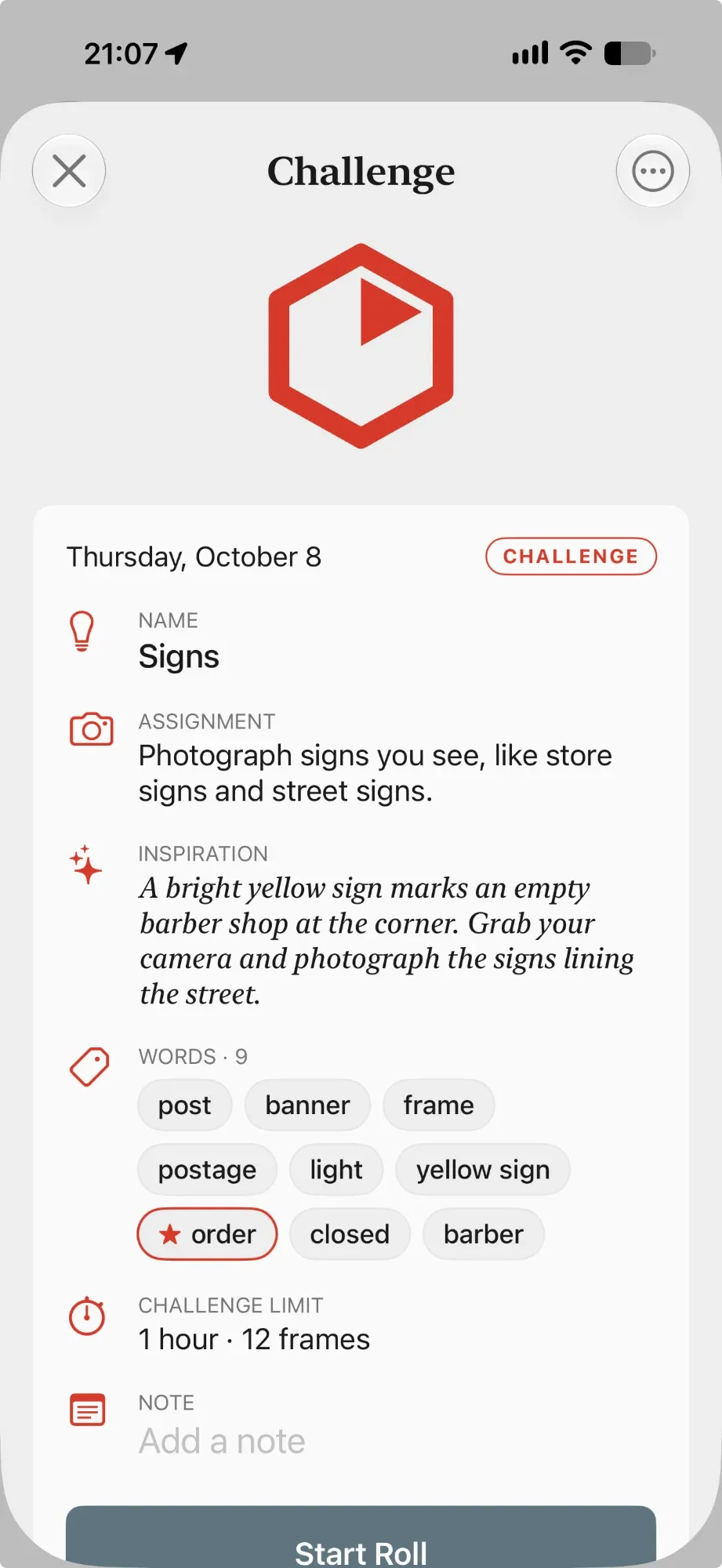
A roll’s page
It shows the name, assignment, inspiration (a line of encouragement), words, limit and frames, and a place to add a note. The big button depends on where the roll is: Start Roll, Continue Roll, Run Again or Restore to Assignments.
Three tiles sit under it:
- Camera settings: the settings for this roll.
- QR code: shows the roll for someone to scan.
- Add to Apple Wallet Pro: keeps the roll as a pass, with the same QR code.
The ⋯ Actions menu at the top right holds Share, Share Result (once finished), Save Start Card and Save End Card Pro, Archive and Delete. A roll in progress can be neither archived nor deleted.
The Start Card and End Card are small images made from the roll that you can put at the start and end of a set of photos. The Start Card shows the assignment and its settings; the End Card shows your closing note, the time and the frames you made. They are only saved when you tap, and they go to your photo library.
Archived Assignments
Archiving tidies a roll away without deleting it. When you have archived rolls, an Archived Assignments link appears under the list. Archived rolls look faded. Long-press one to Restore or Delete it, or open it and tap Restore to Assignments. Deleting can’t be undone.
Settings
Tap the gear on the Assignments screen. The main screen is short; the longer lists are one tap away.
- One Roll Pro
- Shows your plan and how many rolls you have used. Open it for What’s in Pro, Restore Purchases and (for subscribers) Manage Subscription.
- General
- Theme: System, Light or Dark.
- Generator
- Open it for three things. Library: the options each roll is made from: Roll Count, Aperture, Cameras, ISO, Aspect Ratios, Lens, Shutter Speed, Time Limits and Metering Mode. Open one to see its options. Tap the circle to turn an option on or off (a roll only draws from the ones that are on), or use Activate All and Deactivate All. The star marks a default, used when you long-press that setting on New Roll. Pro Add your own options, edit or delete them, and set or unset a default. Built-in options can be turned off but not renamed or deleted. If Pro ends, you keep your own options and can still switch them on and off. Words: Avoid repeats keeps words from your past rolls out of new ones, and Used Words lists them and lets you Clear the list. On-device AI says whether your phone can write with its own model. If it can’t, One Roll uses its built-in prompts and works the same way.
- New Roll Defaults
- What a new roll starts from: kind, Roll count, Time limit, and which camera settings show up (Settings on a new roll). Remember changes (on by default) makes what you change on New Roll your next starting point; off, every roll begins from these choices.
- Writing
- Shoot verb: Photograph, Shoot, Capture, Film or your own word. It is used wherever the app asks you to take a picture. Closing note: the voice of the note on a summary: Coach (positive and motivating), Joker (playful and witty), Mentor (honest and direct) or Stoic (calm and reflective).
- Reminders
- Open-roll reminders for rolls with no time limit, and Remind me every 1 to 12 hours. Daily nudge is a once-a-day prompt to take a roll out, at the time you pick. It is off until you turn it on. If iOS notifications are off for One Roll, a link takes you to the system settings.
The free limit and One Roll Pro
The core of One Roll is free, including receiving, importing and running any shared roll and making and sharing challenges. Free keeps up to 8 rolls. Every roll counts: saved, in progress, finished and archived, made or imported. The list shows a quiet “6 of 8 rolls” until you get there.
Try to add a ninth (by saving, importing or running one again) and you will be asked to Make room, See One Roll Pro or Not now. Nothing is ever deleted for you, and an imported roll waits in its preview while you decide. Archiving does not make room; deleting does.
Pro removes the limit and adds:
- Keywords
- Scene keywords from a photo
- Writing by your phone’s own model
- Prompt words, typed or suggested
- Hints
- Apple Wallet passes
- Start and End Cards
- Your own constraint library
You can subscribe monthly or yearly, or pay once and keep Pro on that platform for good. The current prices are shown in the app and on the App Store. If a subscription ends, nothing you made is deleted or hidden: you keep every roll, word and hint, and can still run them, but can’t add past 8 until you are back under. Pro is per platform, with no accounts, and Family Sharing is on for iPhone. See the terms.
Gestures and shortcuts
| Where | Do this | To do this |
|---|---|---|
| New Roll | Double-tap a setting, Roll Count or Time Limit | Re-roll just that one |
| New Roll | Double-tap the title and description | Write a new one |
| New Roll | Long-press a setting | Set it to your default for that setting |
| New Roll | Swipe a setting left | Remove it from this roll |
| Roll in progress | Tap a word | Count a frame of it |
| Roll in progress | Long-press a word | Show its hint |
| The list | Long-press a card | Archive it |
| Archives | Long-press a card | Restore or delete it |
| Settings → Generator → library | Swipe an option right / left | Set a default / delete it |
Quick actions. Press and hold the One Roll icon on your Home Screen for New Challenge, New Assignment and Import Roll, plus Continue Roll while one is running.
iPad and larger screens. The app keeps to a readable width. Held sideways on a wide screen, the list sits on the left and the chosen roll on the right, and the roll you are shooting takes the left column so its settings stay in view.
Appearance. Light, Dark or System, in Settings → General.
Questions
- Does it need an internet connection?
- No. Writing, words and hints happen on your phone. The only times One Roll goes online are Add to Apple Wallet (to sign the pass) and buying Pro, both only when you tap. There are no accounts and no analytics. See the privacy policy.
- Does One Roll take my photographs?
- No. It never sees them, apart from a scene photo you choose to read for a keyword, which stays on your phone. Frames are a count you keep. Start and End Cards go to your photo library only when you save them.
- The clock ended my roll. Did I lose anything?
- No. Frames and words you counted are kept. The roll is marked as ended by the clock and you can Run Again.
- I can’t add a roll.
- You are at the free limit of 8. Delete a roll you no longer need (archived ones count too) or go Pro. Nothing is deleted for you.
- A word, a prompt or a hint reads oddly.
- Writing from a small model on a phone can be odd. Tap Regenerate, double-tap the block, or use the pencil and write your own.
- Is there an Android app?
- It is planned after the iPhone app. Pro is bought separately on each platform.
Still stuck, or have an idea? Visit the support page.